NFC vs QR Code for Business Cards: When to Use Which (and What to Do When Neither Works)

The NFC vs QR Code Business Card Question Nobody Answers Honestly
If you carry a digital business card, you have two sharing methods available to you: NFC tap and QR code. Most content on this topic picks a winner and stops there. That is not especially useful, because the right answer depends on the situation you are standing in — the device in the other person’s pocket, the distance between you, whether there is a signal, and whether you are sharing one-to-one or broadcasting to a room.
This article covers how each method actually works, where each one fails, and what to do when neither is reliable. It is aimed at anyone who networks regularly and wants to use the right tool at the right moment rather than defaulting to habit.
How NFC Works in a Business Card Context
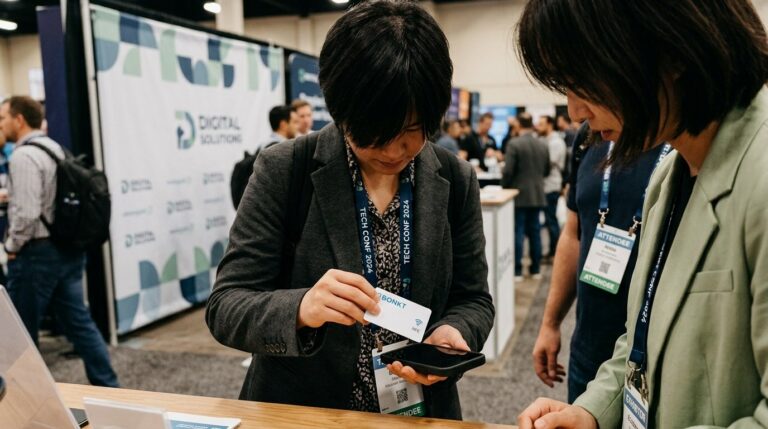
NFC stands for Near Field Communication. It uses a short-range radio signal — typically effective within about four centimetres — to transfer a small payload of data from one device or chip to another. On a digital business card, that payload is a URL. The recipient’s phone reads it and opens the profile in their browser. No app needed on their end, no account, no prior setup.
The interaction takes roughly a second when it works cleanly. For a one-to-one handover — you and one other person, phones in hand — it is hard to beat for speed and simplicity.
Where NFC Runs Into Trouble
NFC has some real constraints worth knowing before you rely on it exclusively.
Distance is non-negotiable. The signal does not work at arm’s length. The recipient needs to hold their phone within a few centimetres of your card or device. In a noisy environment where personal space is limited, this can feel awkward.
Older devices may not cooperate. On Android, NFC has been standard hardware for many years, but it still needs to be switched on in settings — and some users have it off by default. On Apple devices, the situation changed over time: iPhone 7 and later support background NFC reading (meaning no separate app is needed), but iPhones older than that either require a dedicated app or do not support NFC reading at all. In practice, most current smartphones handle it fine, but you will occasionally encounter a device that does not.
Cases and accessories can interfere. Thick wallet cases, metal card holders and some phone cases can block or degrade the NFC signal. The tap may need to be repositioned, or it may simply not register.
How QR Codes Work in a Business Card Context
A QR code encodes a URL as a visual pattern. The recipient’s phone camera reads it and opens the link in a browser. Like NFC, the recipient does not need an app — the native camera on any modern smartphone will scan a QR code without additional software.
The key difference is that QR is a visual medium, not a proximity one. You can share it at a distance, display it on a screen, print it on a lanyard, add it to a slide deck, or embed it in an email signature. The recipient does not need to be standing next to you.
BONKT’s knowledge base has a dedicated article on how QR codes work within the platform, and there is also a guide on downloading your QR code for virtual backgrounds or name badges — both worth reading if you are setting up for an event.
Where QR Codes Run Into Trouble
Lighting and angle matter. A QR code on a glossy surface under harsh lighting can be difficult to scan. A code displayed on a phone screen at an angle, or in direct sunlight, can also cause the camera to struggle. The fix is usually simple — tilt the screen, adjust brightness — but it adds friction.
Small codes are harder to read. If your QR code is printed at a very small size, or displayed on a low-resolution screen, the camera may take several attempts to lock on. Minimum recommended print size is generally around 2.5 cm square.
It requires a camera and a working link. This sounds obvious, but it is worth stating: the QR code is only the delivery mechanism. If the profile URL it points to is not loading — due to a network issue on either end — the scan succeeds but the page does not.
A Practical Comparison for Common Networking Situations
Rather than declaring a winner, here is how each method tends to perform across the situations you are most likely to encounter.
One-to-One Handover at Close Range
NFC is faster and cleaner here. A single tap, a second of contact, and the profile is open on their screen. No camera framing, no waiting for a scan to register. If both devices are compatible and NFC is enabled, this is the smoothest option available.
Sharing Across a Table or at a Stand
QR wins here. You cannot tap across a table. A QR code displayed on your phone screen, or printed on a card or stand, can be scanned from a comfortable distance without either party needing to hand anything over.
Event Presentations and Group Sharing
QR is the only practical option. You can project your QR code on a slide, display it on a monitor at your stand, or print it on a badge. NFC requires individual physical contact and cannot scale to a room.
Virtual Meetings and Remote Introductions
QR again — specifically, your code embedded in a virtual background or shared as a link in the chat. NFC has no role in a video call. If you use BONKT, you can download your QR code for use in virtual backgrounds directly from the platform.
Spontaneous Encounters — Lifts, Airports, Networking Drinks
Have both ready. NFC is faster if the other person’s phone cooperates. QR is the fallback if it does not. Knowing your QR code is accessible in two taps on your phone means you are never stuck.
What to Do When Neither Works
There will be moments when NFC fails and scanning is not practical — a dark venue, a dead phone battery on their end, a device that simply does not cooperate. The answer is a direct link.
Your BONKT profile has a URL. You can send it as a text message, drop it into a chat, or share it via any messaging platform. The recipient taps the link and the profile opens in their browser — same experience as a tap or scan, just delivered differently. No app required on their end.
If you are on a paid plan, a custom domain makes that URL short and memorable enough to say aloud or type from memory. That is worth considering if you share your details frequently in situations where you cannot guarantee a tap or scan will work.
BONKT also includes a built-in QR code scanner, which means you can scan cards you receive as well as share your own — useful when the other person is still carrying a paper card.
The Practical Habit Worth Building
The professionals who get the most out of a digital business card tend to default to NFC for close-range one-to-one exchanges and QR for everything else. They keep their QR code accessible — not buried in a menu — and they know their profile URL well enough to share it as a fallback.
Neither method replaces the conversation that follows. A card share, however it happens, is the start of a contact record — not the relationship itself. What matters is that the other person walks away with your details saved, not with a card they need to photograph or type out later.
If you want to see how both sharing methods work in practice, the How It Works page walks through the full flow. The features page covers what is available across plans, and pricing starts at $0 with no credit card required to get started.
For a broader look at getting value from your card once it is set up, the guide on making the most of your BONKT digital business card is worth a read. And if you want to understand what the platform can do beyond sharing, the benefits overview covers the full picture.